
 Nurhidayah Mahmood
It’s the 3rd of the month. Your sales executive emails her travel claim to her manager, with photos of the receipts attached. The manager is on site visits all week, and the email slips under fifty others. Finance closes the month. The claim misses the cut-off.
Two weeks later, she sends a WhatsApp: “Boss, did you see my claim?” Meanwhile, a purchase request for an urgent spare part has been waiting in another inbox for six days.
Nobody did anything wrong. The process simply depends on emails, memory and good luck. For many businesses, this is where workflow automation in Malaysia starts to pay off.
5 Reasons Approvals Get Stuck in Email
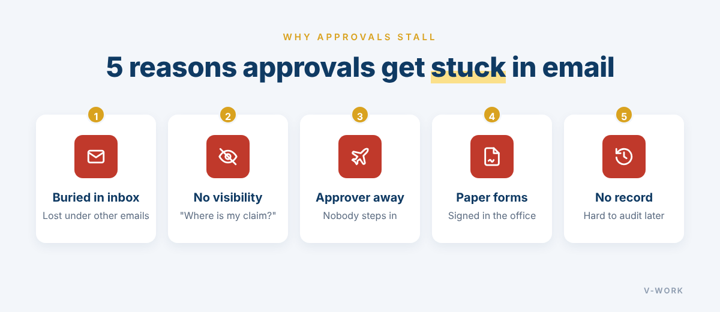
- Buried in the inbox. An approval request is just one more email, easy to miss in a busy inbox.
- No visibility. Staff can’t see where their request is, so they chase by email, phone and WhatsApp.
- Approver away. When the manager is on leave or travelling, nobody knows who should step in.
- Paper forms. Printed forms need a signature, and a signature needs someone in the office.
- No record. Months later, it’s hard to show who approved what, and when.
How Power Automate Fixes It
Power Automate is Microsoft’s workflow tool, and it works with the Microsoft 365 apps your team already uses. Instead of passing emails around, every request follows the same simple flow:
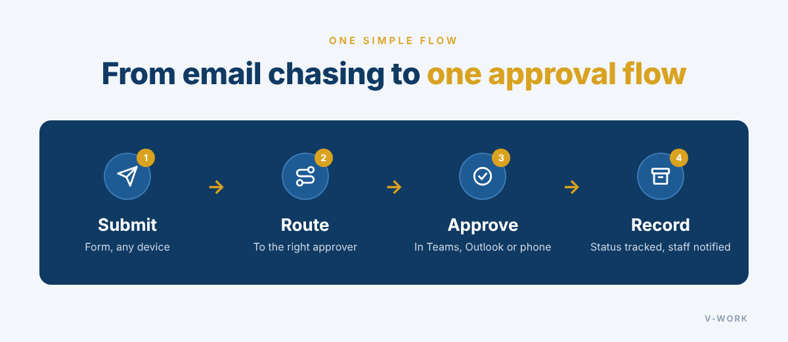
- Staff fill in a short form, such as Microsoft Forms or a SharePoint list, from a laptop or phone.
- The request goes straight to the right approver, based on rules you set.
- The approver taps Approve or Reject in Microsoft Teams, in Outlook, or in the Power Automate mobile app.
- The result is saved with who approved it and when, and the staff member is told straight away. The request’s status updates at each step, so staff can check where it is instead of chasing.
If an approver doesn’t respond within a set time, the flow can be set up to send a reminder or pass the request to a backup approver.
What It Looks Like for Leave, Claims and Purchases
- Staff apply through a simple form. The manager approves in Teams, the leave record in a SharePoint list is updated, and HR sees it without retyping anything.
- Staff attach a photo of the receipt. Claims above a set amount go to a second approver, and finance gets a clean list of approved claims at month-end.
- Requests go to the department head first, then to finance for bigger purchases. Every approved request is kept in SharePoint, ready for audit. It’s a simple first step towards eProcurement.
What about licensing? Approval flows that use Microsoft 365 tools, such as Outlook, Teams, SharePoint and Forms, work with most Microsoft 365 business plans. Connecting the flow to an accounting system, ERP or database usually needs a Power Automate Premium license, so check this when you plan. The people who only approve requests don’t need a Premium license.
How to Get Started
- Start with the most painful process. Pick the one approval that causes the most chasing today, often claims or purchase requests.
- Write down the rules. Agree who approves what, up to which amount, and who steps in when someone is away.
- Start simple, then improve. Launch a basic flow first, listen to feedback, then add more steps. Simple flows can be built from Microsoft’s ready-made templates. More complex rules, such as several approval levels, are best set up with a partner.
Approvals shouldn’t depend on who remembers to check their inbox. A simple approval flow gives your team faster answers, fewer reminders and a clear record of every decision.
Ask yourself one question this week: how many approvals are waiting in someone’s inbox right now?
Want help setting up your first approval flow? Talk to V-Work, your partner for Power Automate in Malaysia.