
Try this quick test. Open your support queue and look at last week's cases. How many began as a thank-you note, an out-of-office reply, a newsletter or spam?
If your setup turns every email into a case, each of those emails probably started a service-level clock and landed in someone's queue. Then someone had to close it by hand. Your reports also show more work than there really is. For lean service teams in Malaysian businesses, that's time better spent on real customers.
Dynamics 365 Customer Service now has a built-in fix. Email classification uses AI to sort incoming emails into categories you define, before a case is created. It became generally available on 21 August 2026.
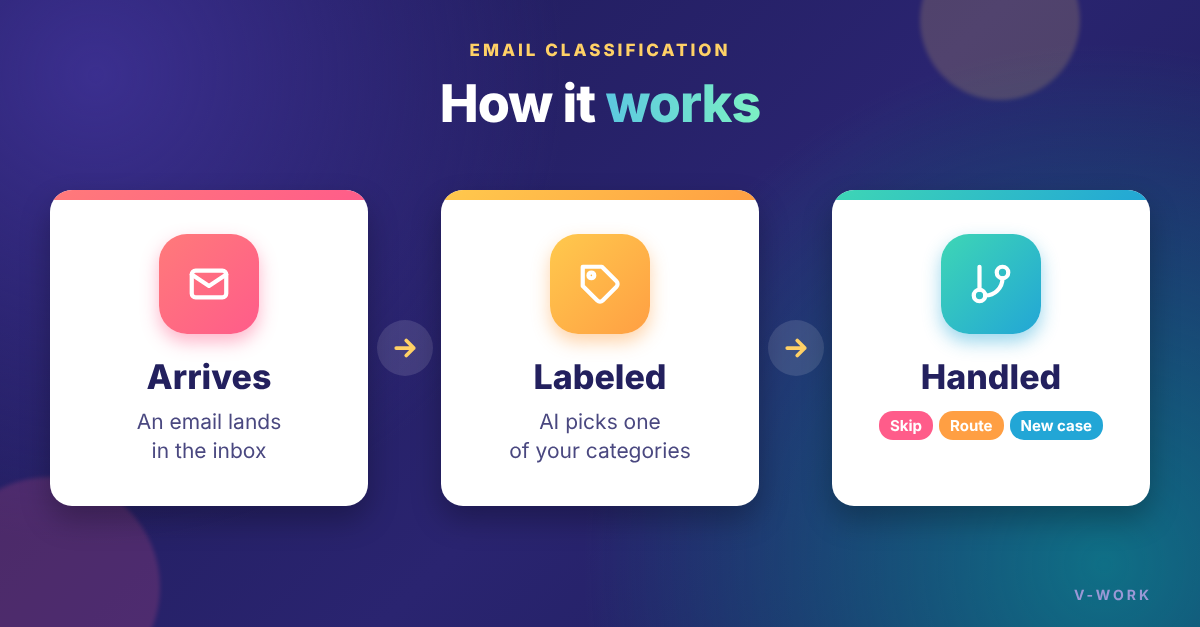
How it works
An administrator sets it up in the Copilot Service admin center:
- Categories: You make your own list, such as Billing, Complaints, Marketing and Uncategorized. You need at least two. You can have up to 20 at the top level, and build a hierarchy up to four levels deep, with up to 10 subcategories at each level.
- Descriptions: Each category has a short description that tells the AI what belongs in it.
- Scope: Conditions decide which emails get checked at all, for example only emails sent to certain mailboxes.
- The label: The AI reads the subject and body. It saves the category on the email record, in a field called "Email category (AI)".
What the label can do
- Stop cases you don't need: Exclude categories such as Marketing from automatic case creation, so they never start a service-level clock.
- Send real issues to the right team: Use the category in routing rules to reach the right queue.
- Control automation: Use it in automatic record creation and update rules, and in your case creation logic.
If you add the category to the email form, staff can see it, change it when it's wrong and give feedback.
Test it on old emails first
The simulation is the most useful part. Before classification touches live email, you can run it on past emails. Use records already in your system, or an Excel file of up to 50 sample emails. The results show the category the AI would pick and the reason for each one. If you include the category you expected, you also get an accuracy percentage. Change the descriptions and run it again until you trust the results.
Two things to plan for
- It always picks a category: Even when an email fits none of them well, the AI still chooses one of yours. Microsoft suggests a catch-all such as "Uncategorized", so it doesn't force a wrong label.
- It needs pay-as-you-go billing: It must be turned on for the environment. Classification also uses AI resources, so limit it to the mailboxes that matter.
Setting it up needs the System Administrator or CSR Manager security role.
Start with one mailbox
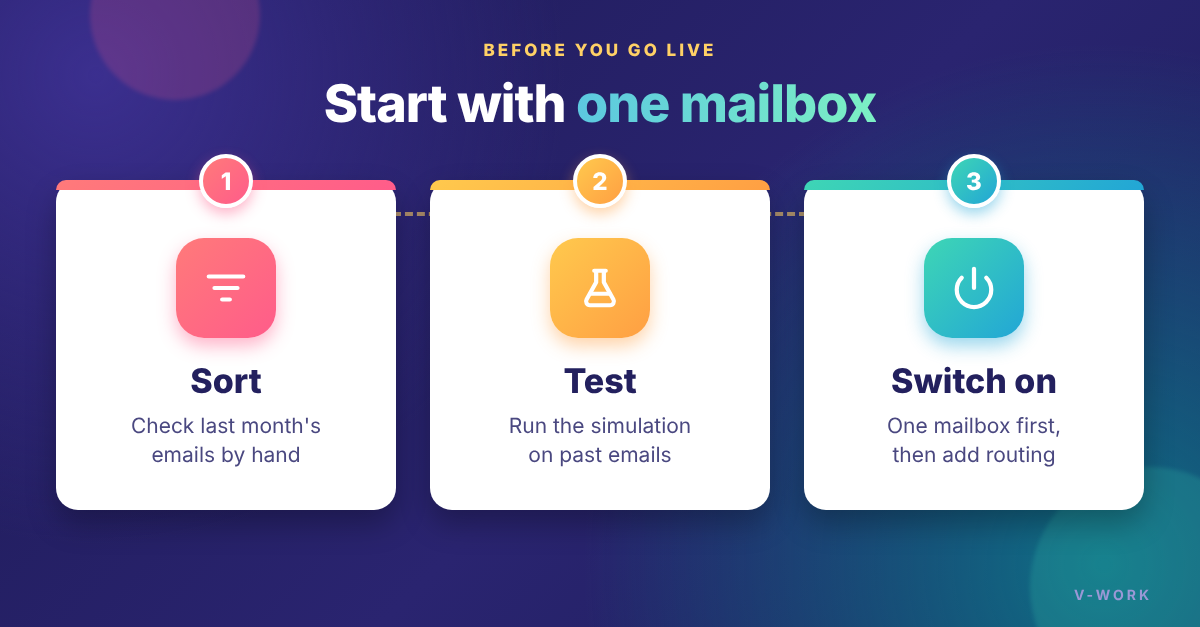
- Sort a sample: Take last month's emails from one support mailbox and note what each one really was.
- Test your categories: Draft five to eight categories, including a catch-all. Run the simulation and improve the descriptions.
- Switch on small: Turn it on for that one mailbox. At first, use the label only to stop junk from becoming cases. Add routing later.
How V-Work can help
If you run customer service on Microsoft Dynamics 365 CRM in Malaysia, V-Work can help you set up email classification. We can design your categories with your service team, test them on your own past emails, and connect them to case creation and routing. Contact us to get started.